DeskOp Desktop Overlay
How to Install
1. Click the green download button above
2. Run the installer DeskOpSetup.exe
3. DeskOp will install to Program Files (x86) and launch automatically
4. It will auto-run on startup via the Windows Startup folder
5. You can uninstall it anytime via Control Panel → Programs and Features
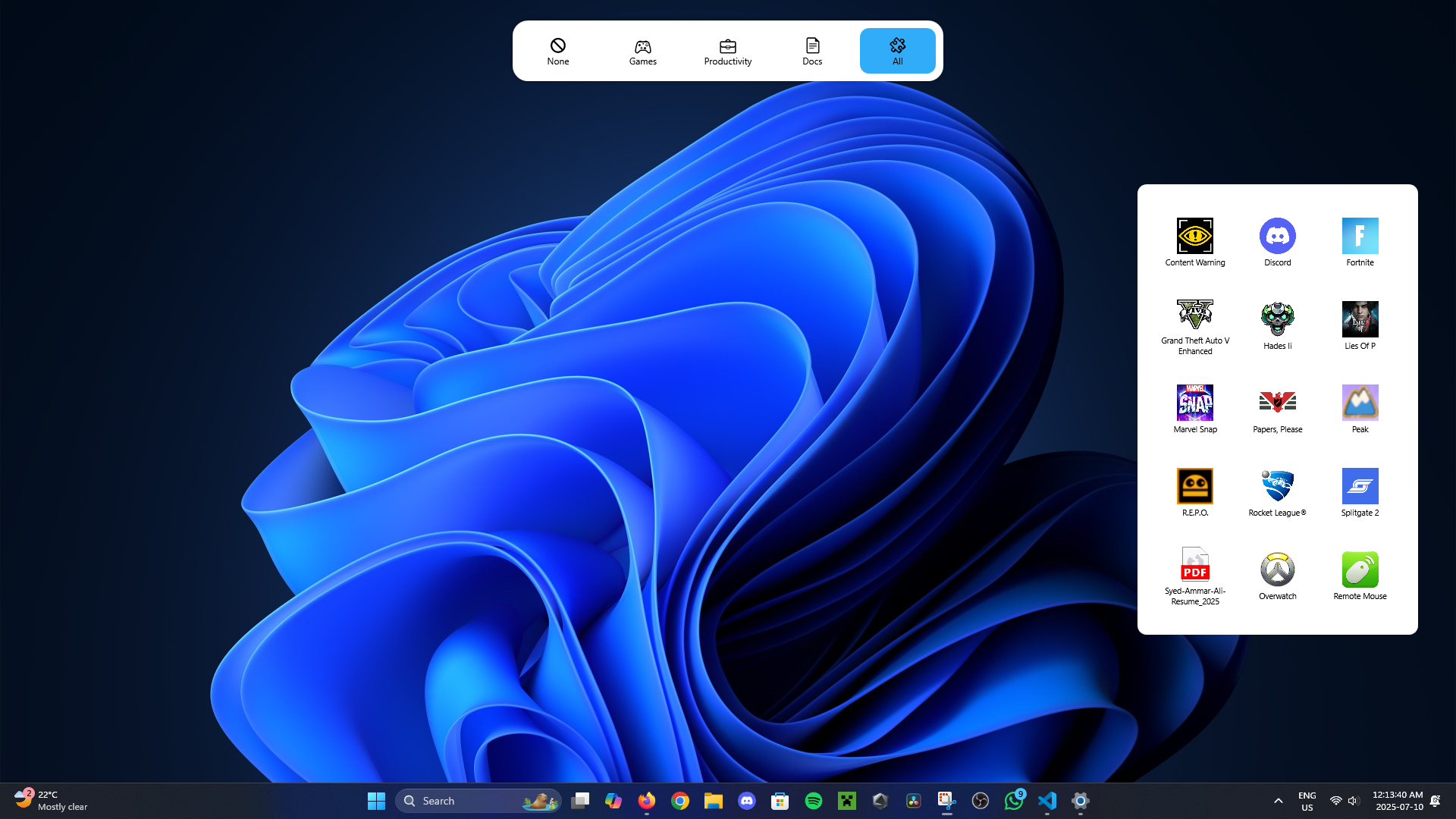
Features & User Guide
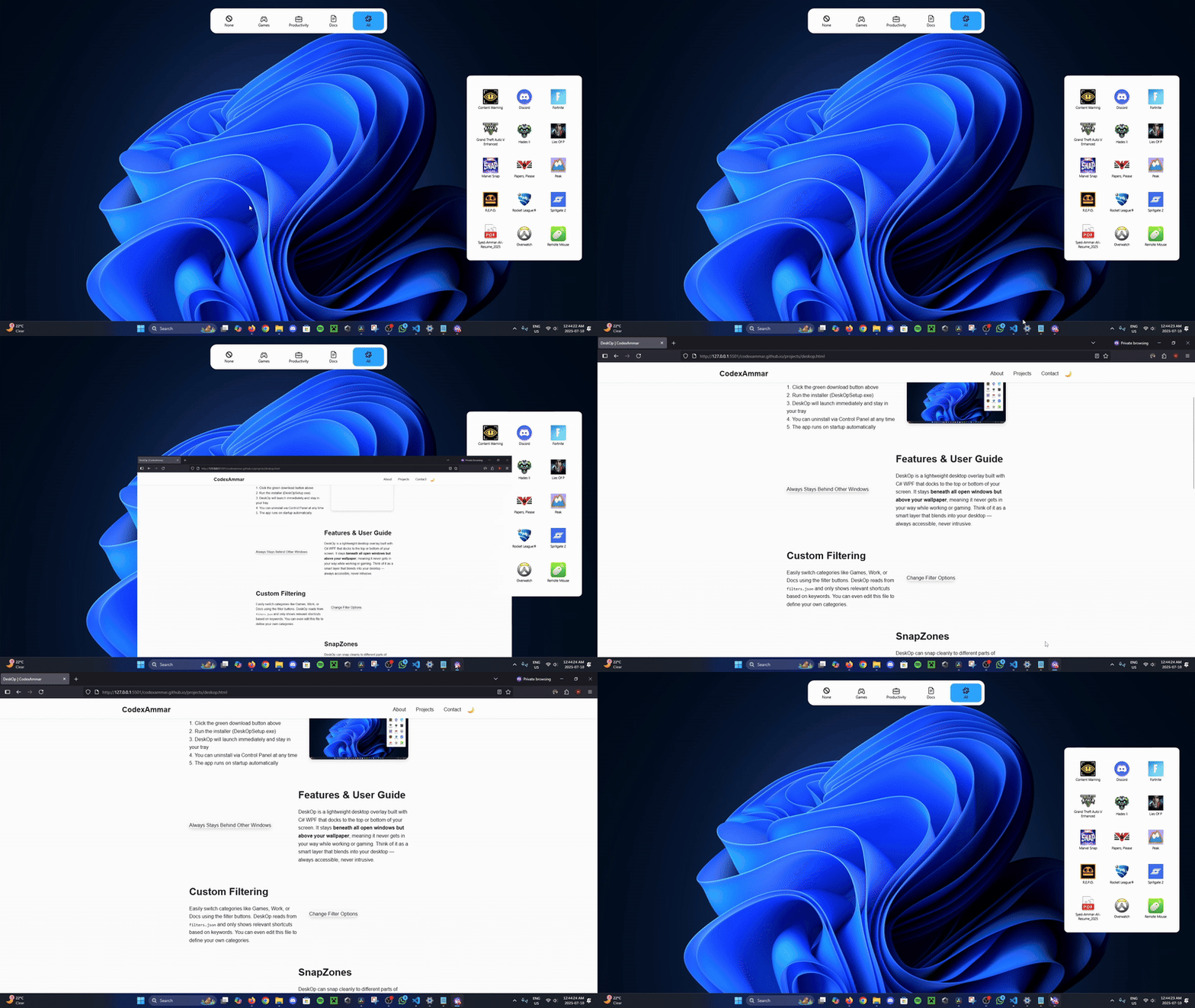
DeskOp is a lightweight, always-on desktop overlay built using C# and WPF. It docks to your screen’s edge and stays beneath all open windows but above your wallpaper, making it non-intrusive while still being always available — perfect for productivity or gaming.
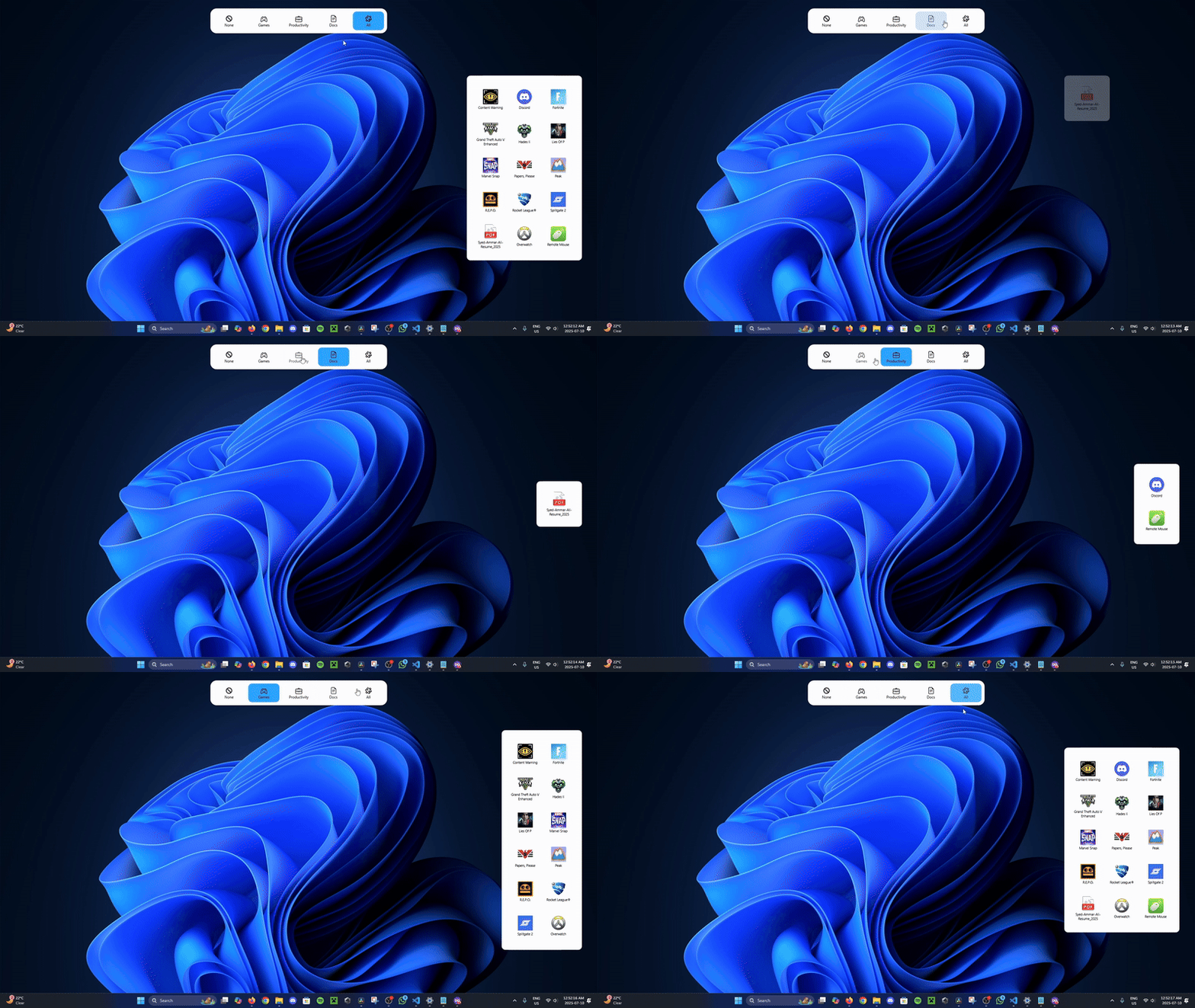
Custom Filtering
Easily toggle categories like Games, Productivity, or Docs using the filter buttons.
DeskOp reads from a filters.json file to determine which shortcuts to show.
You can customize this file with your own categories and keyword triggers.
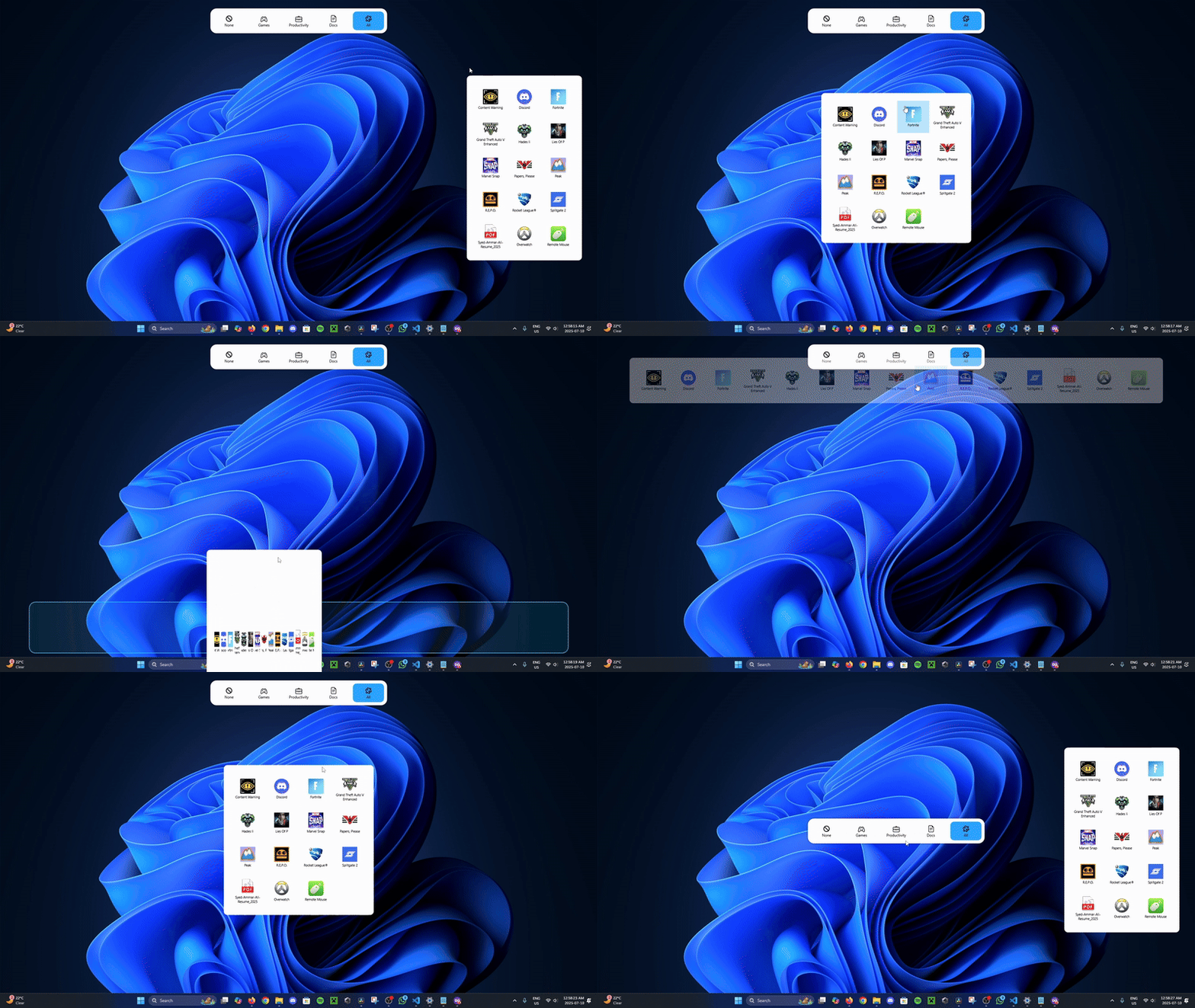
SnapZones
DeskOp supports dynamic positioning using SnapZones. You can snap it to the top, bottom, left, right, or center of your screen. Layouts adapt automatically: top/bottom zones use horizontal rows; left/right zones use vertical columns.
Snapping happens automatically when dragging, or when changing filter modes or reopening the app.
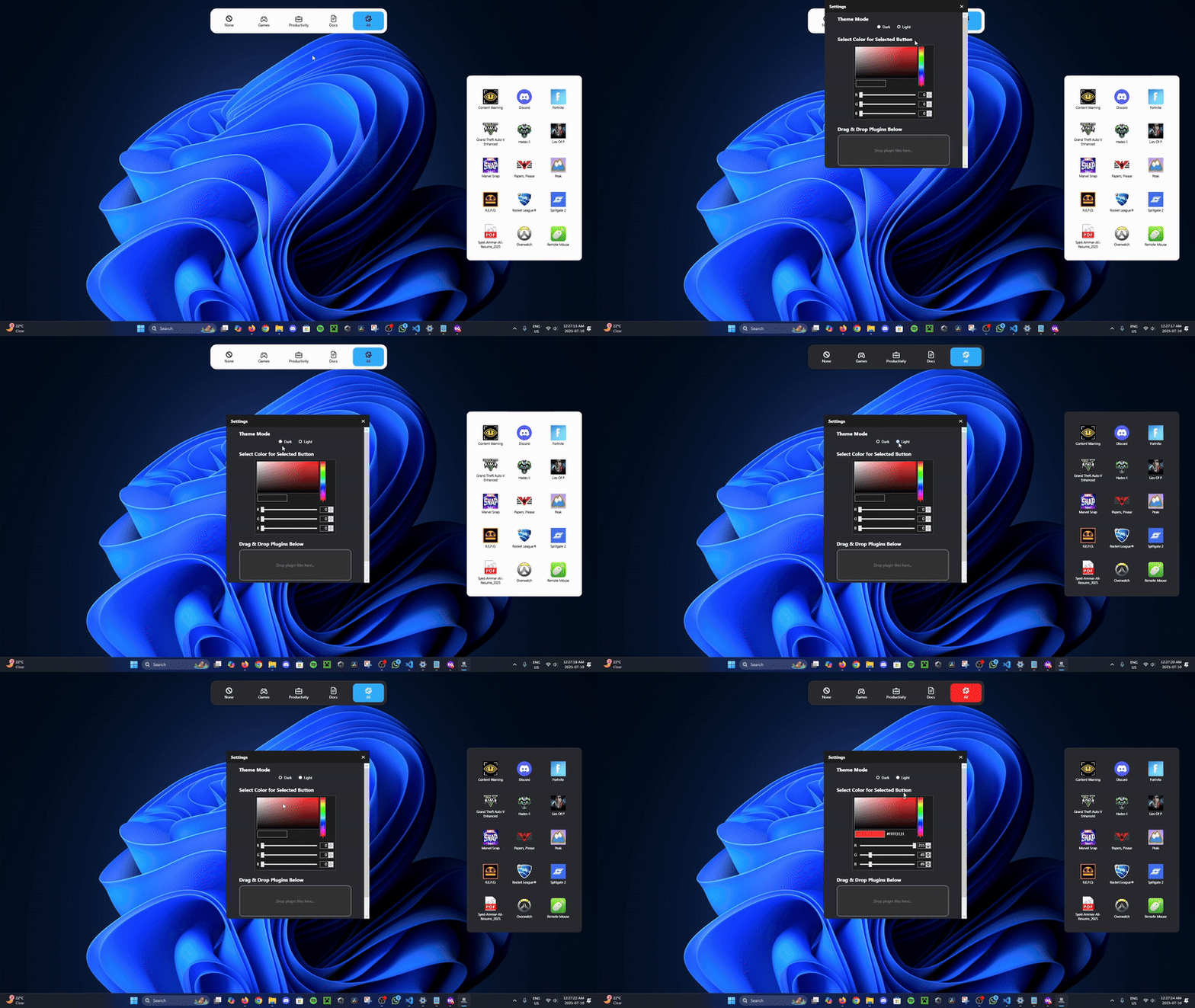
Theme Customization
Toggle between light and dark mode, choose your background and accent colors,
and DeskOp will remember your preferences. All customizations are saved to theme-settings.json
and automatically applied on startup.
Persistent State
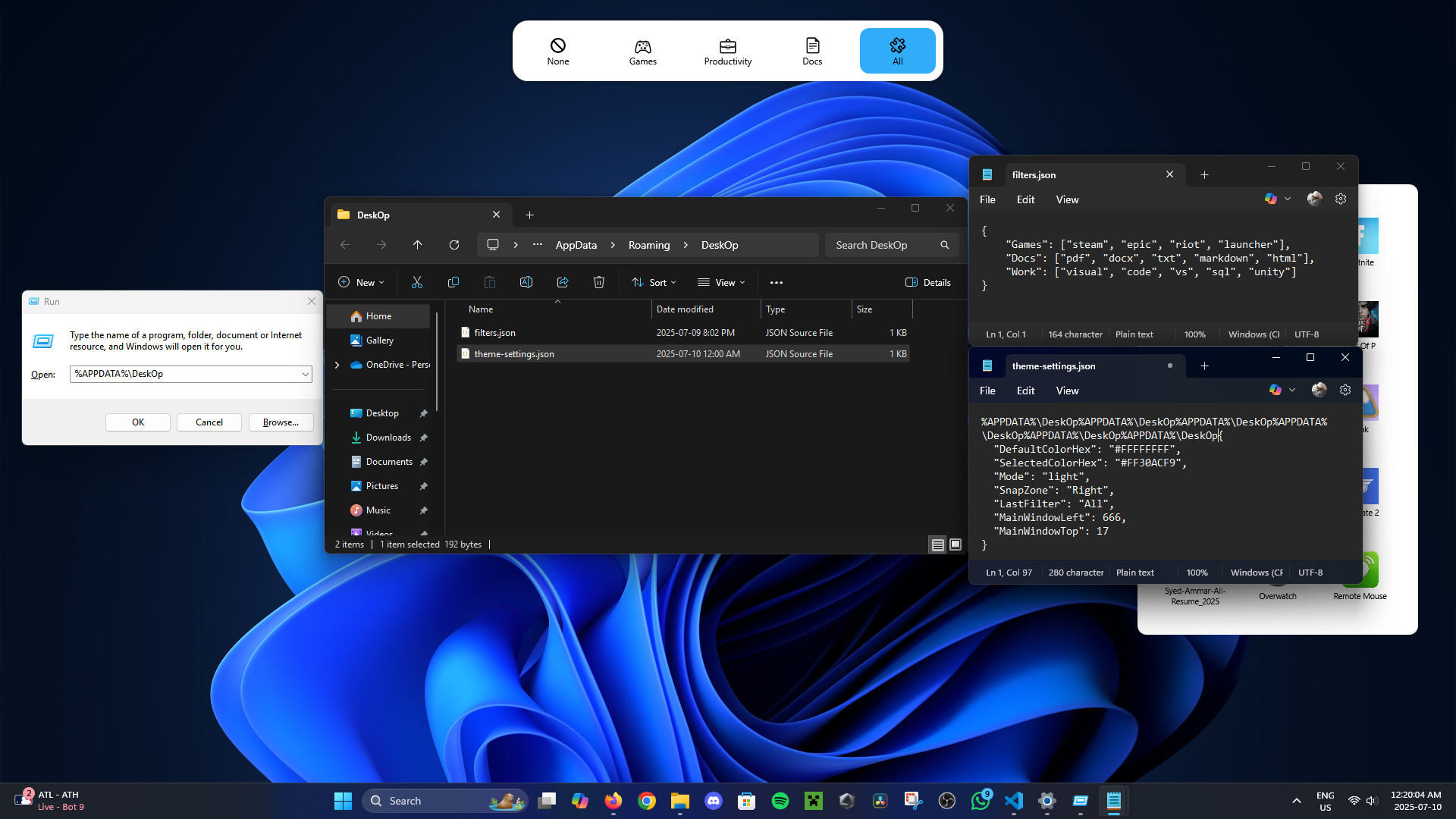
DeskOp remembers your:
- Last used filter
- Theme colors and mode
- Window snap zone and layout
- Main window position
Customize Filters
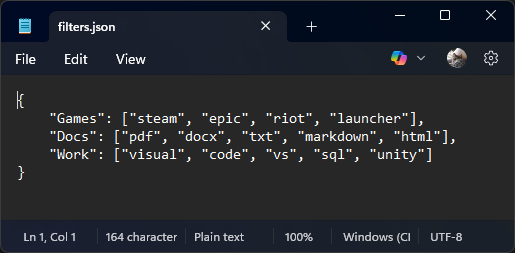
You can define your own filter categories by editing the filters.json file.
Each category contains a list of keywords (like "steam" or "pdf").
DeskOp matches these against shortcut names and metadata to determine which icons belong to which filter.
How Filtering Works
DeskOp scans all shortcuts from your user and public Desktop folders.
For each shortcut, it checks names, paths, and arguments for keywords defined in
filters.json. It then dynamically displays a filtered grid of icons
based on your selected category.
Credits
Designed and developed solely by Syed Ammar Ali as a large-scale personal project to demonstrate adaptability, problem-solving, and full-stack development skills in C#.